How do I prepare my clients for the Will writing session?
There are three ways to prepare your clients for the Will writing session:
- Send a Will preparation form via our automated email system.
- Manually download and send the client the Will Preparation Form (PDF format).
- **For CEP Pro subscribers only** Create a user account for the client to complete the information online.
Send a Will preparation form via our automated email system
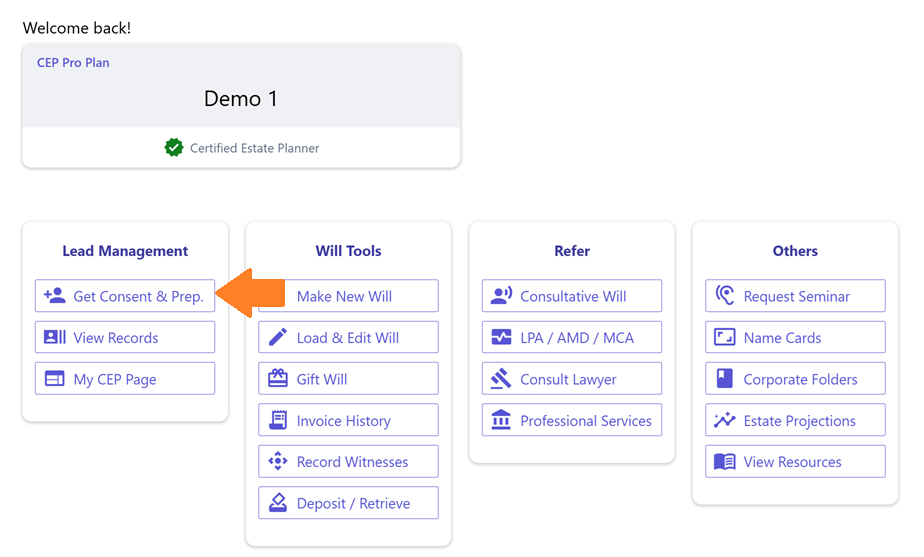
Click on the "Get Consent & Prep" function.
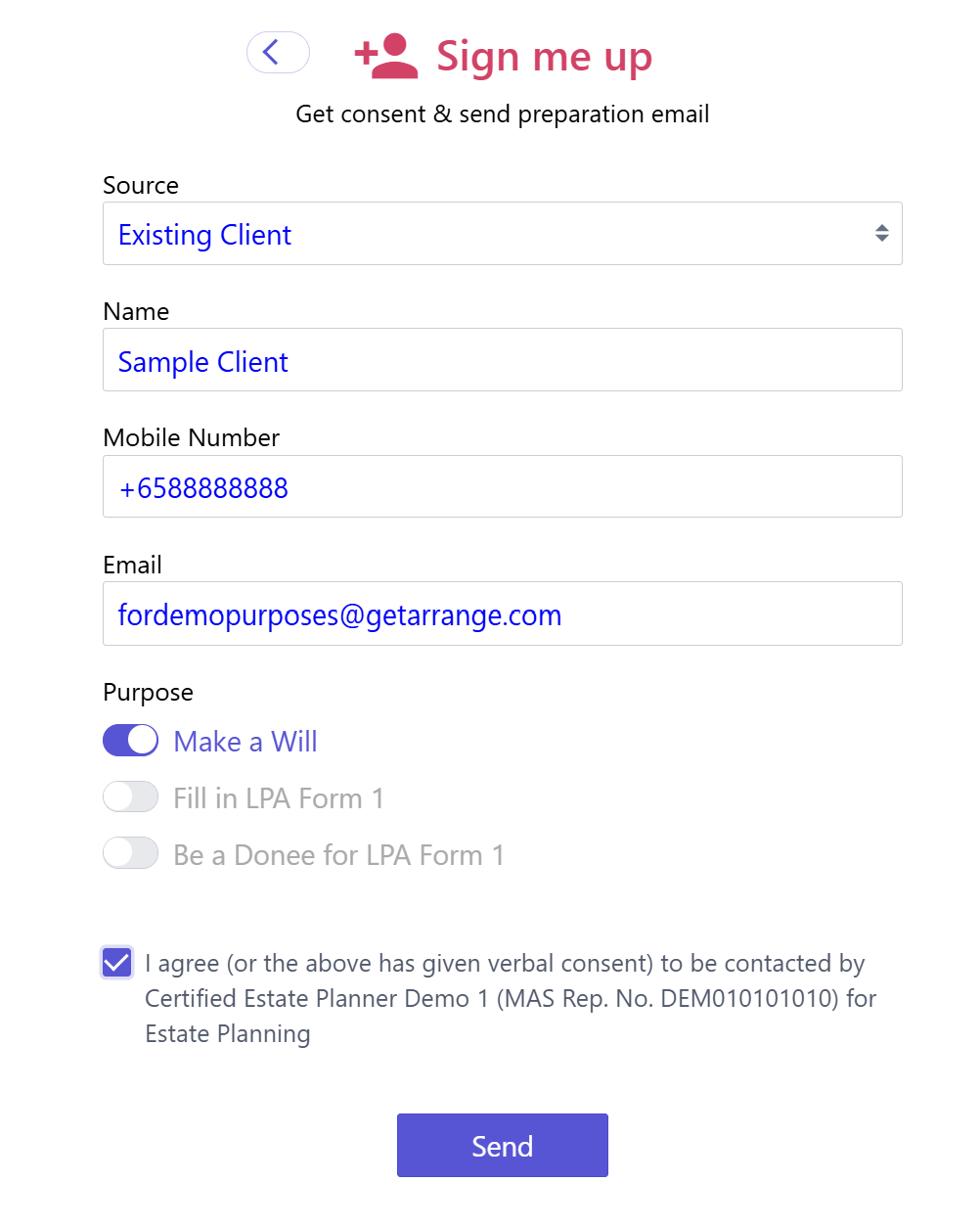
Enter the required information, read and tick the "I agree" checkbox, then click "Send". An email will automatically be sent to your client. It will include information on what they need to prepare, together with a copy of the Will Preparation Form. Ask your client to complete the form and return it to you.
Manually download and send the client the Will Preparation Form
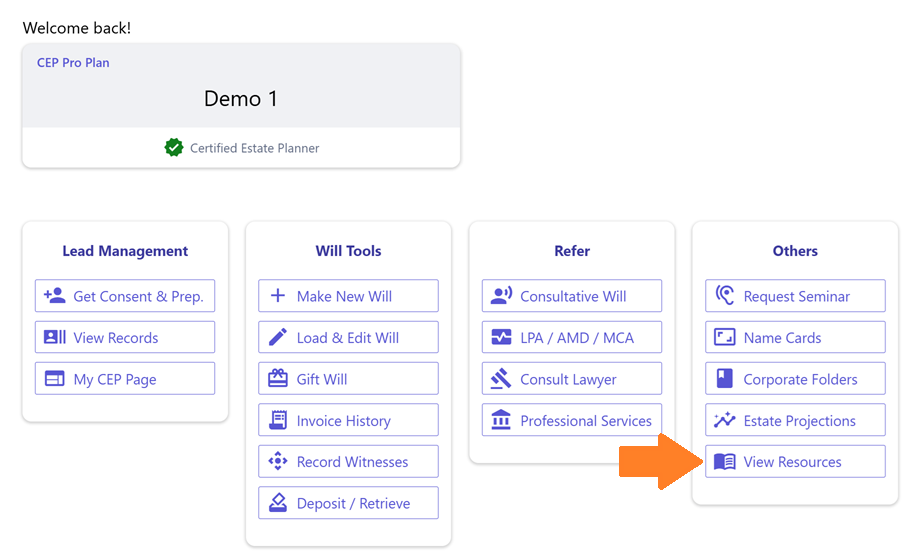
Click on "View Resources".
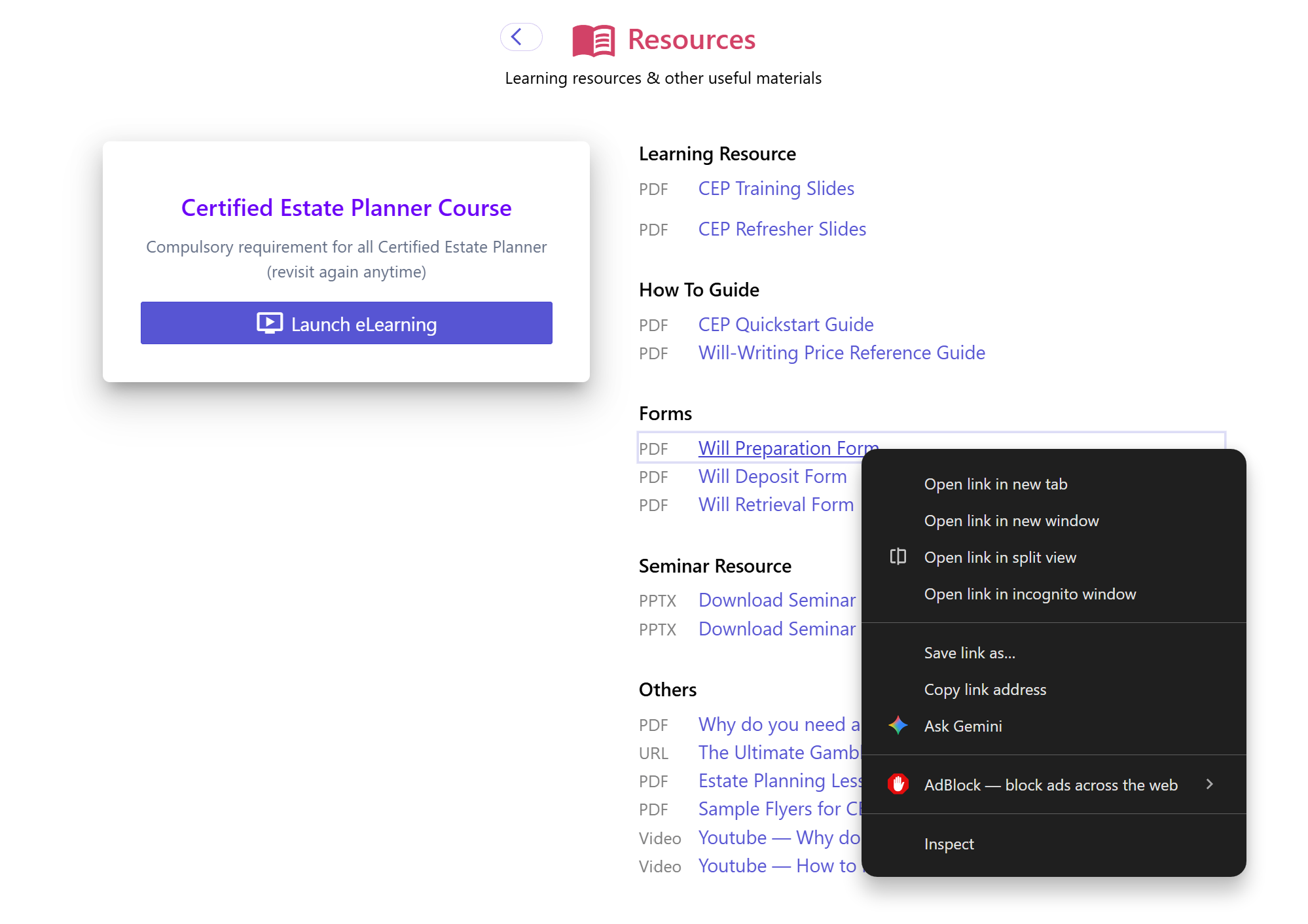
In the page, right-click on the "Will Preparation Form" and select "Save link as…" to download the form. Alternatively, you can click on the Will Preparation Form and save the document directly. You may then send the PDF to your client via your preferred communication channel. Ask your client to complete the form and return it to you.
**For CEP Pro subscribers only** Create a user account for the client to complete the information online
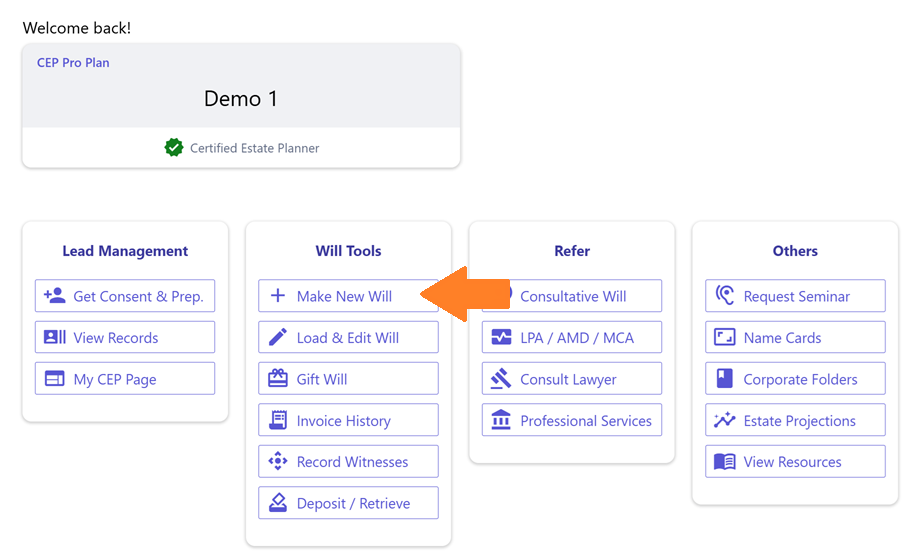
Click "Make New Will" on the platform.
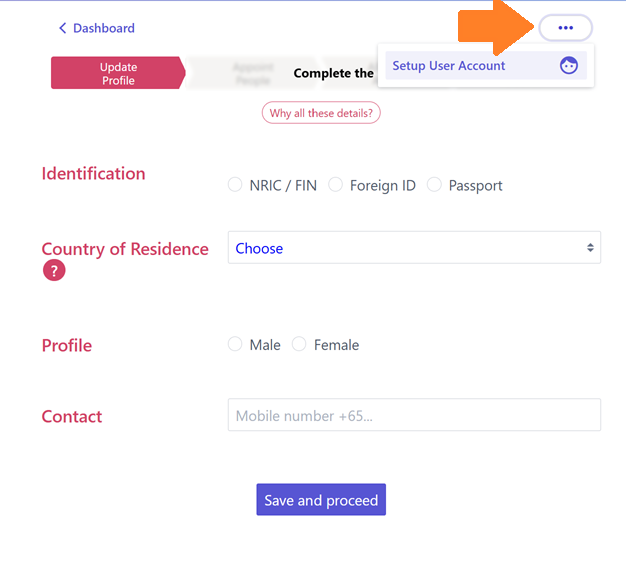
On the empty profile page, click the "…" (three-dot menu) in the top right-hand corner and select "Set up user account".
Select "Activate Immediately", enter your client's email address, then click "Send Code".
Always use the client's actual genuine email for sending the Will. This ensures security and direct access for clients. Do not use your own personal email addresses or fake temporary email addresses as substitutes. Creating new emails for clients is acceptable under specific circumstances, such as when a client is not tech-savvy, provided the client ultimately controls the email account (e.g. the email's username and password should be given to the client and advise the client to change the email password accordingly).
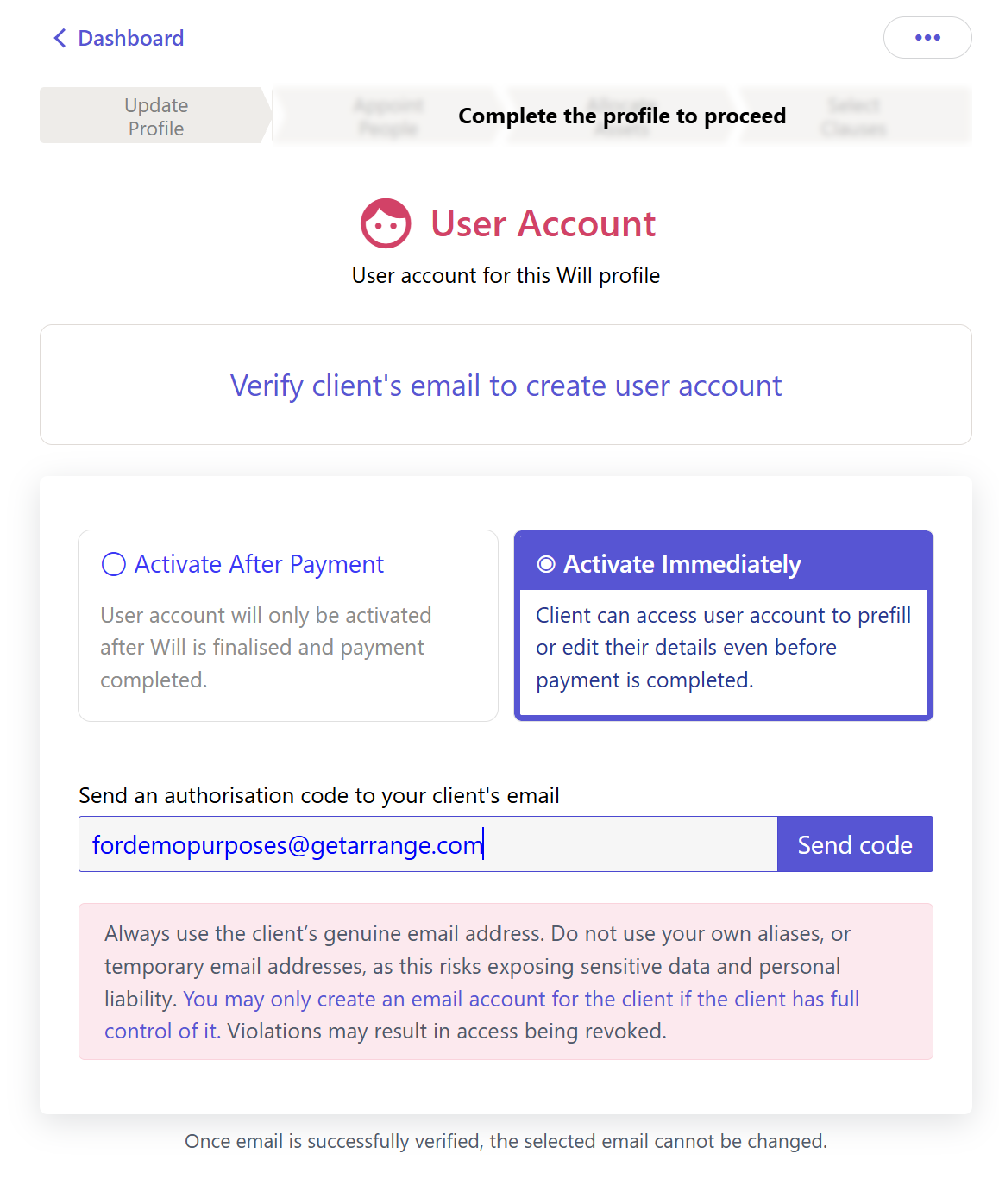
This will send an One-Time-Password (OTP) to the client's email. Key in the OTP and click “Confirm”.
There is no need to stay on the page to await the authorisation code as the code is valid for 7 days. You can reload the specific Will profile and go to the "Setup User Account" page again to key in the code.
By default, the accounts are linked. Any information entered in the client's user account will automatically be synchronised with the CEP's account (for that particular Will profile only), and vice versa.